PixPix has launched an AI-powered color‑changing feature, allowing users to quickly preview multiple color schemes for a single product image.

It’s quite common in e-commerce for the same product to have multiple color SKUs, but this often means preparing new product images as well.
Ordering one set each of blue, green, and white means repeating the sampling, photography, and post-processing steps all over again. For sellers with many SKUs and frequent new releases, while each individual task may seem simple, the cumulative effort can consume a significant amount of design and operational time.
If you hand this task over to a designer to manually adjust colors, it’s not just a matter of tweaking the hue. The texture, shadows, light-and-dark relationships, and material representation on the product’s surface all need to be addressed together; otherwise, issues like unnatural colors or distorted textures are likely to arise.
Recently, PixPix officially launched its AI Product Color‑Change Feature within its e‑commerce tools. Users can quickly experiment with new color schemes based on existing product images, preview different color options, and enjoy a more convenient way to create visual assets for multi‑color SKUs.
I. One product image—let’s first see how it looks with a different color
Product color changes address a very specific yet highly frequent challenge in e‑commerce image production.
For example, suppose a cup has already been photographed in blue, and now you want to add green, off‑white, or other colors. Or perhaps you’re preparing new color variants for headphones or phone cases, but the new physical samples and complete visual materials aren’t yet ready.
In the past, when faced with such requests, there were typically two approaches: reshoot the product, or have a designer edit each image individually.
Now, you can directly use your existing product images and try out new color effects through the PixPix Product Color‑Change Tool.

You can preview different color schemes based on the same product image, while preserving the product’s structure, leather texture, and hardware details.
This capability is useful both for editing images of existing SKUs and for early-stage color‑previewing of new products. Before finalizing a color scheme, operations, design, or product‑selection teams can visually assess how various colors will look on the product, helping them decide which versions to prioritize during subsequent production.
II. When changing product colors, the challenge goes beyond simply “turning blue into green”
Many people, upon first encountering product color‑changing tools, assume it’s similar to ordinary photo color adjustments.
But once applied to actual product images, the differences become quite apparent.
A product’s color isn’t entirely flat. Fabrics have folds and textures, leather exhibits varying shades depending on the angle, plastics and metals reflect light, and curved items like cups and bottles are further influenced by ambient lighting.
If you simply adjust the entire image’s color, you risk altering the background, figures, or other elements along with the product. Conversely, merely overlaying a single layer of color may compromise the product’s original sense of depth and material expression.
Therefore, the key to e‑commerce product color changes is to seamlessly integrate the new color into the existing image while preserving the product’s original structure, lighting, and visual details.
PixPix has developed a dedicated product‑color‑change tool precisely because such requests occur frequently. For operators who regularly handle multiple color SKUs, there’s no need to start from scratch with complicated image‑editing workflows every time.
III. Which products are especially suited for using product color changes?
As long as a product offers distinct color variations, similar needs may arise.
For instance, clothing, hats, bags, and shoes often come in multiple colors; 3C and digital accessories like phone cases, earphones, keyboards, and small appliances also differentiate SKUs through various color schemes; drinkware, storage items, furniture, and home goods typically have colors that directly influence their overall aesthetic; and beauty and personal care products often require adjustments to bottle designs, packaging, or exterior colors across different series.
For these types of products, if you already have a foundational image with ideal composition, lighting, and product condition, there’s no need to start from scratch with a new shoot just to preview a new color.
Especially during stages like new‑product color selection, SKU expansion, or marketing visual testing, completing a color preview first allows your team to quickly evaluate the real‑world visual impact of different options.
IV. How do you use PixPix’s product color‑change feature?
PixPix places the product color‑change tool under its “Products” category in the Tools section, making the workflow straightforward.
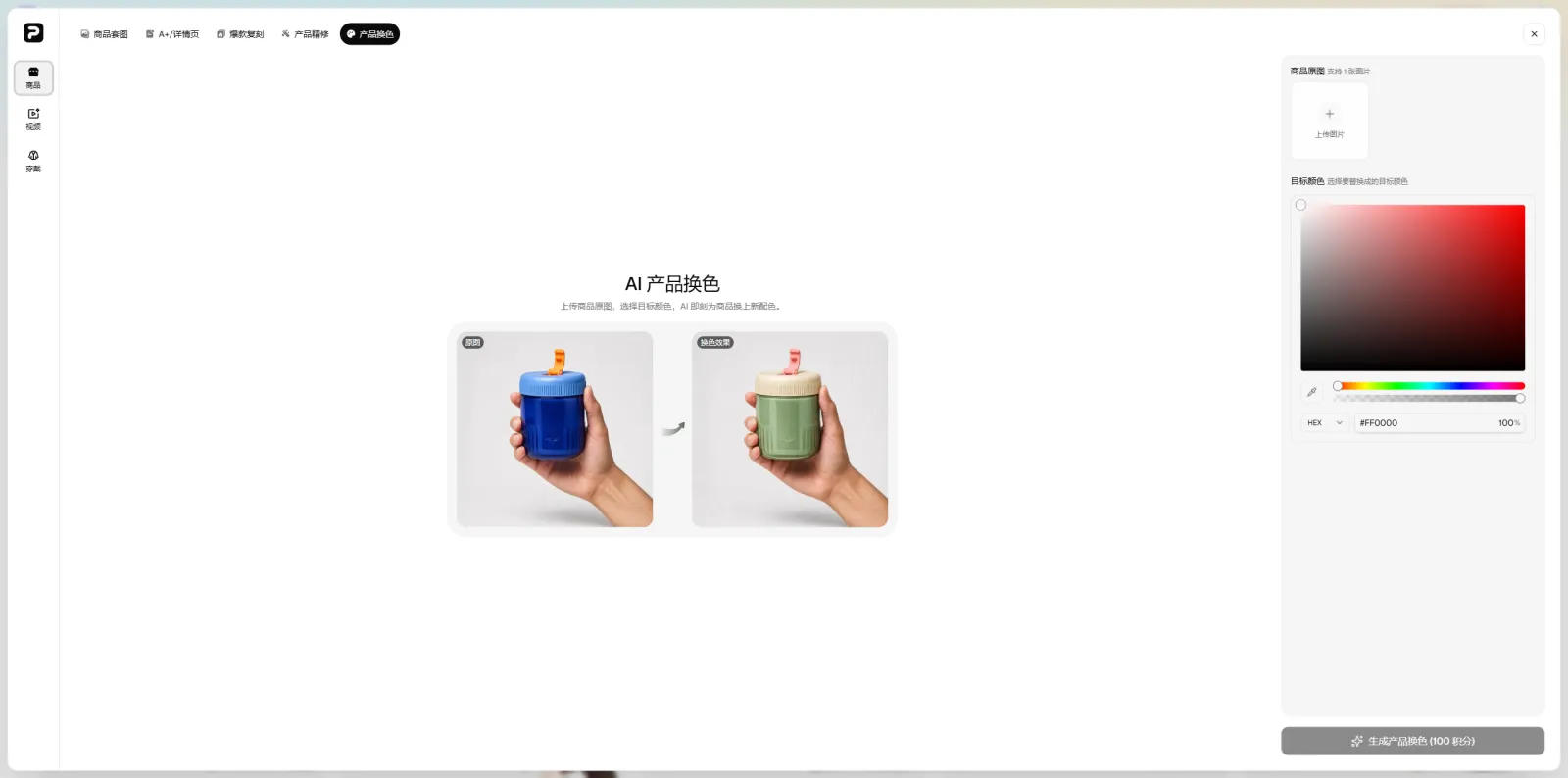
Simply upload the original product image and select your desired target color to generate a new color‑variant version of the product.
Enter the PixPix Color‑Change Tool and upload the product image you wish to edit;
Select or set the desired product color as prompted on the page;
After generating the color‑change effect, review the product’s color, material, edges, shadows, and other key details, then proceed with further image editing based on its intended use.
The key to this entire process is directly reusing existing product images that have already been photographed.
If the original image’s composition, product angle, and scene are already suitable, and you only need to experiment with new colors, there’s no need to redo the entire image‑creation workflow for each color variation.
V. For multiple color SKUs, more existing assets can be reused
Color‑changing products offers benefits beyond just reducing the number of images that require editing.
When launching new products online, sellers often need to prepare various types of visuals—such as white‑background main images, scene shots, detail pages, and marketing graphics. If every additional color requires a fresh round of photography and post‑production, the more SKUs you have, the faster your asset library will grow.
With product color‑changing capabilities, high‑quality images that have already been created can continue to serve as a solid foundation for further creative work.
For example, if you’re satisfied with the composition, lighting, and props in a particular scene shot, you can simply create another color variant and test it out using the color‑change tool. The same approach applies to previewing new colors or internally comparing different visual concepts.
Of course, even after AI‑generated color‑change images are ready, it’s still advisable to conduct manual checks before officially using them on product pages. Especially when dealing with real product colors, materials, logos, packaging text, or intricate structural details, ensure consistency with the actual SKU to avoid discrepancies between the image and the physical product.
VI. Integrating Product Color‑Changing into PixPix’s E‑commerce Image Workflow
Following the launch of this product color‑changing feature, PixPix’s suite of e‑commerce image tools has gained yet another capability tailored to everyday operational needs.
Currently, PixPix Tools: An E‑commerce Toolkit brings together tools for creating product image sets, A+ pages, detail‑page optimization, and advanced product retouching, while also offering image‑editing features such as local redrawing, high‑resolution zoom, image expansion, localized removal, background elimination, and perspective adjustments.
For e‑commerce operations and design teams, a single product image may undergo numerous rounds of processing: background removal, photo retouching, color changes, composition tweaks, followed by the creation of main images, scene shots, and detailed visuals.
By consolidating these frequently performed tasks within a single e‑commerce creative toolkit, you can minimize the time spent repeatedly importing and exporting assets across multiple software applications.
Although product color‑changing may seem like just one small step in the overall image‑creation process, for stores with a large number of color SKUs, it represents a task that occurs again and again.
By avoiding unnecessary reshoots and redundant image production, the cumulative savings across multiple SKUs translate into more meaningful time for content creation.
At present, PixPix’s AI‑powered product color‑change feature is live. Those interested can access the PixPix AI Color‑Change Tool to preview new color options for their products.

AI Image Tool Built for E-commerce Teams
For new product launches, advertising, and promotional campaigns, use AI to generate product images, scene visuals, ad creatives, and short video assets — making content production faster.