In one minute, learn how to use PixPix to generate a complete set of e-commerce product main images.
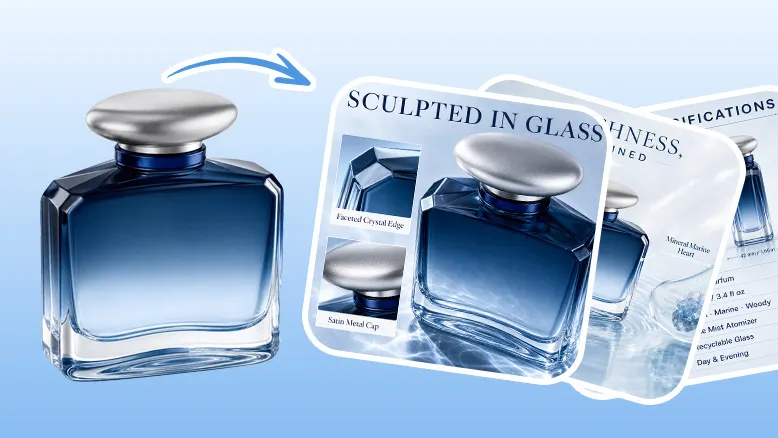
Generation Process
Prepare the Original Product Image
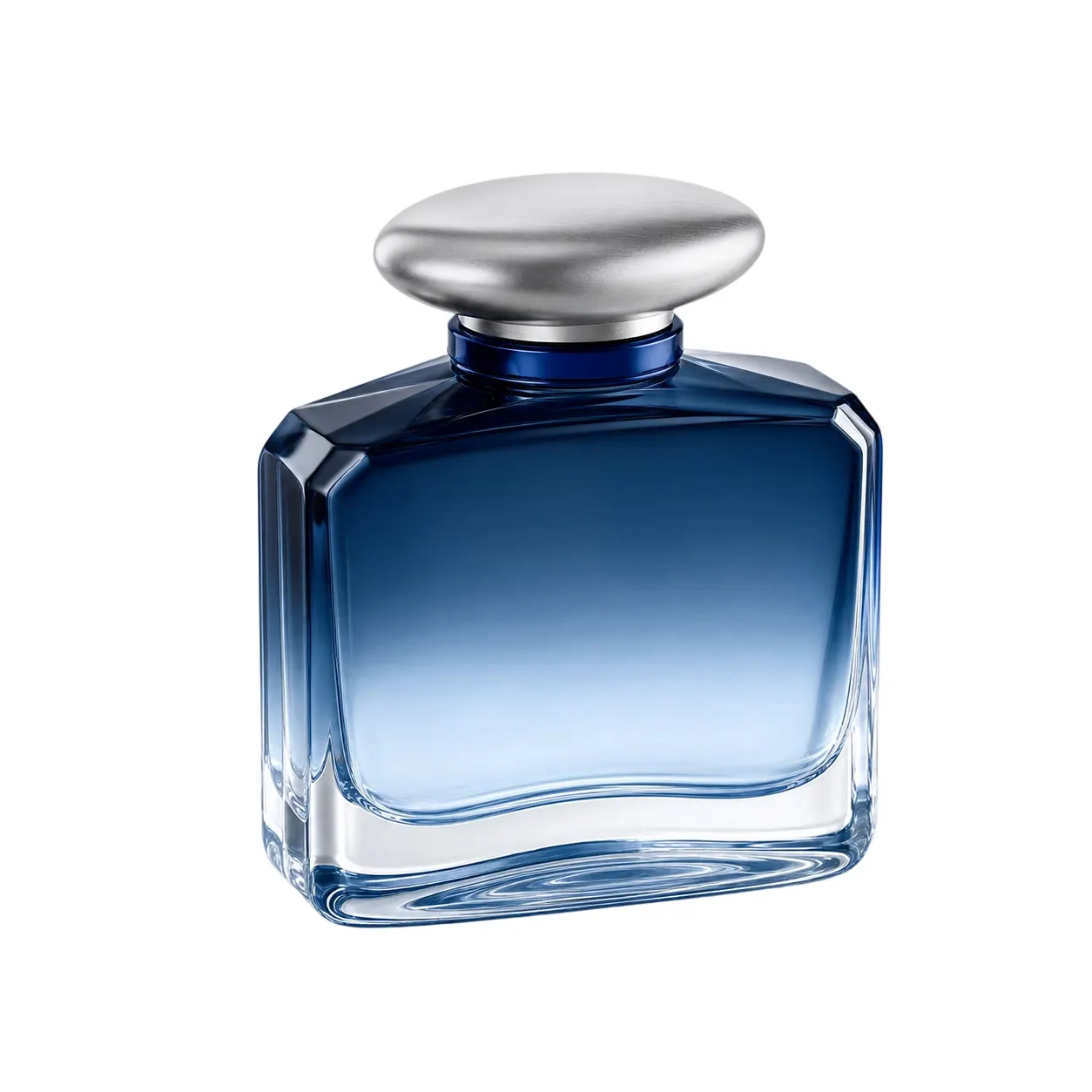
Prepare a product image with a clear subject and clean edges.
In this example, we use a blue transparent glass perfume bottle with a silver metal cap, set against a white background.
It’s best to avoid complex backgrounds in the original image, making it easier for AI to analyze the product’s outline, material, and structure.
If the product has reflective, transparent, or metallic materials, ensure that the details are clearly visible.
Enter the AI Product Image Suite
Open PixPix.
Access the “AI Product Image Suite” feature.
Upload the original product image.
Select the platform, language, and image ratio for listing.
Fill in the Product Selling Points
When reusing, it’s recommended to write the selling points as “Product Name + Material & Structure + Core Selling Point + Usage Scenario + Style Requirements”:
Product Name: Blue Glass Perfume Bottle
Core Selling Point:
1. Blue transparent glass body, fresh and high-end
2. The bottle is translucent, featuring a moist, gradient texture
3. Geometric cut-out silhouette
4. Silver metal‑style cap
5. Suitable for multiple scenarios
6. A small spray can naturally diffuse fragranceVisual Requirements: Overall style should be fresh, upscale, and clean—ideal for e‑commerce platform main images, selling point images, and scene images.
Choose the Image Suite Structure
Two configuration options:
Smart Matching: AI intelligently analyzes the product image and matches the optimal Listing image suite.
Custom Configuration: You can freely adjust the number of images in each category, selecting at least
1 张.
The types available in custom configuration include:
White Background Image: White‑background main image, showcasing product details from multiple angles
Scene Image: Displays real-life usage scenarios and styling combinations
Selling Point Image: Highlights core selling points and detailed close-ups
Other Images: Comparison images, size charts, etc., matched intelligently based on the product
In this example, we first demonstrate smart matching, followed by an introduction to custom configuration.
Generate Product Collage
After clicking “Generate Product Collage,” PixPix will automatically create a set of listing images. The resulting types include:
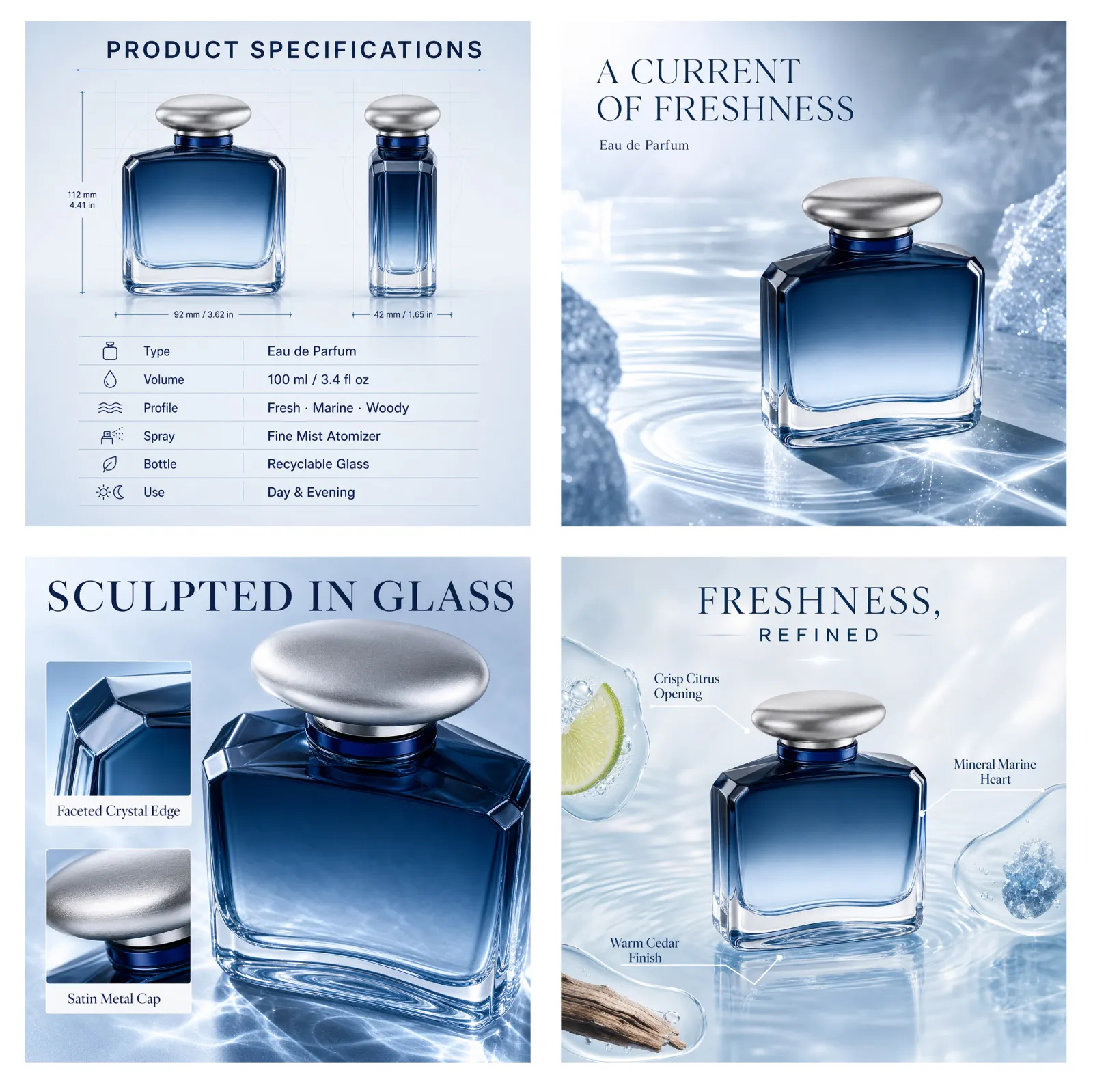
Product Specification Image: Displays structural details such as dimensions, capacity, fragrance notes, spray nozzle, and bottle design.
Fresh Scene Image: Features seaside, citrus, water ripples, and mineral-inspired oceanic backgrounds.
Detail Highlight Image: Emphasizes the glass facets and silver metal cap.
Product Story Poster: Includes English titles such as
FRESHNESS, REFINEDandSCULPTED IN GLASS.

AI Image Tool Built for E-commerce Teams
For new product launches, advertising, and promotional campaigns, use AI to generate product images, scene visuals, ad creatives, and short video assets — making content production faster.